UPDATING CREDIT CARD IN TEAMSNAP
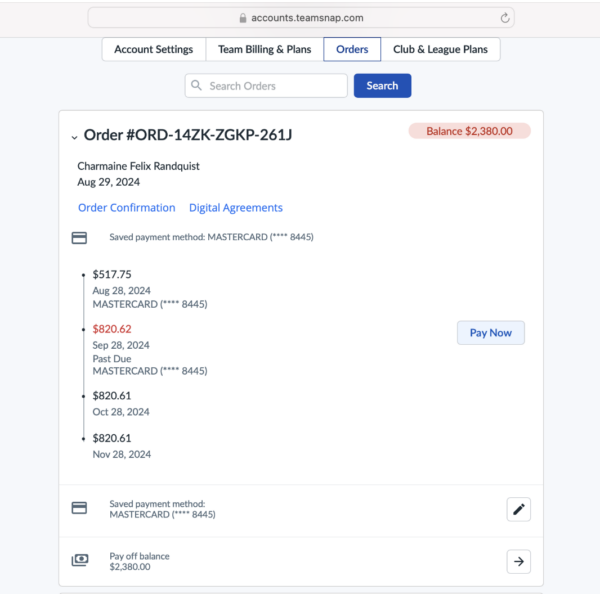
Changes need to be made using the TeamSnap website, not the app. It is a 2-step process: first you'll need to update the card, then click the blue "Pay Now" button to process the payment.
How to Update Credit Card for Registration Installment Payments
- Go to https://accounts.teamsnap.
com/orders on the TeamSnap Web App - Sign In
- Click "Account"
- Click "My Account"
- Click "Orders"
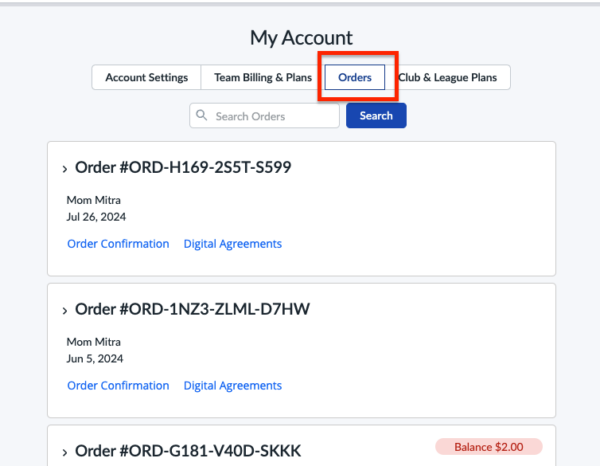
Select the order you want to edit by clicking the down arrow next to the Order Number.
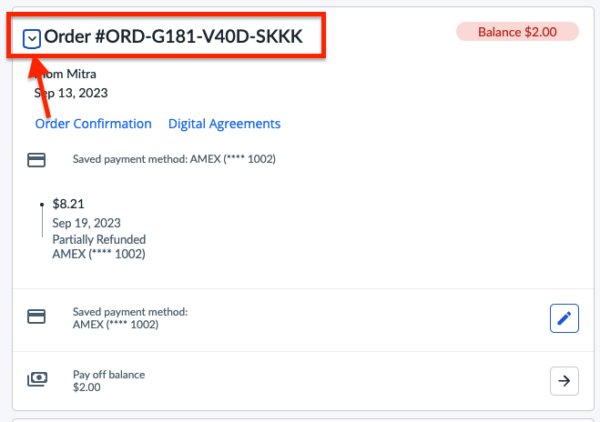
- Click the Edit Pencil icon next to your credit card information to edit.
- Enter the new credit card details and click "save."
After the card is updated in the order, you should see a blue "Pay Now" button to the right of the installment, similar to the screenshot below. You should be able to click on that button to make the payment(s).